
How to Create a Google Voice Account without a Phone Number?

Google Voice remains one of the most powerful tools for modern communication. It offers free, unlimited calling and texting within the US and Canada, along with powerful features such as AI-powered voicemail transcription and the ability to route calls to multiple devices.
However, Google Voice requires a one-time phone number verification for the sign-up to prevent spam and meet stricter KYC requirements. Because of this, you must use an existing US number for the verification. So, for many users, this becomes a concern, especially if they do not want to link their personal data or do not have access to an active US number.
So, let’s explore whether you can skip using your personal phone number and the practical ways to sign up for Google Voice using alternative options.
Key Highlights:
Google Voice requires a phone number for verification, but you can use alternatives instead of your personal number.
Virtual numbers are the most flexible option, offering both temporary (one-time) and subscription-based solutions for verification.
Top providers like Calilio, Textverified, Hushed, and Burner offer reliable options for Google Voice verification.
Choosing the right provider depends on factors like number type, SMS and call support, and number freshness.
Using a high-quality, carrier-backed number improves your chances of successful verification and avoids common OTP issues.
Can You Create a Google Voice Account without a Phone Number?
No, you cannot create a Google Voice account without using a phone number for the initial verification process. As mentioned before, Google Voice requires a valid, existing US-based phone number to complete the registration process.
While many sites claim you can bypass this step, those methods are unreliable and often go against Google’s terms of service. Nonetheless, the good news is you don’t have to use your personal phone number. There are safe and legitimate alternatives you can use instead.
How to Sign Up for Google Voice without Your Personal Number?
You can register for a Google Voice account without a personal number by using a virtual phone number, a burner phone, or a trusted friend or family member’s number. Instead of using your own number, enter these alternative numbers during signup, and once the OTP is sent to that number, use it to verify and activate your Google Voice account.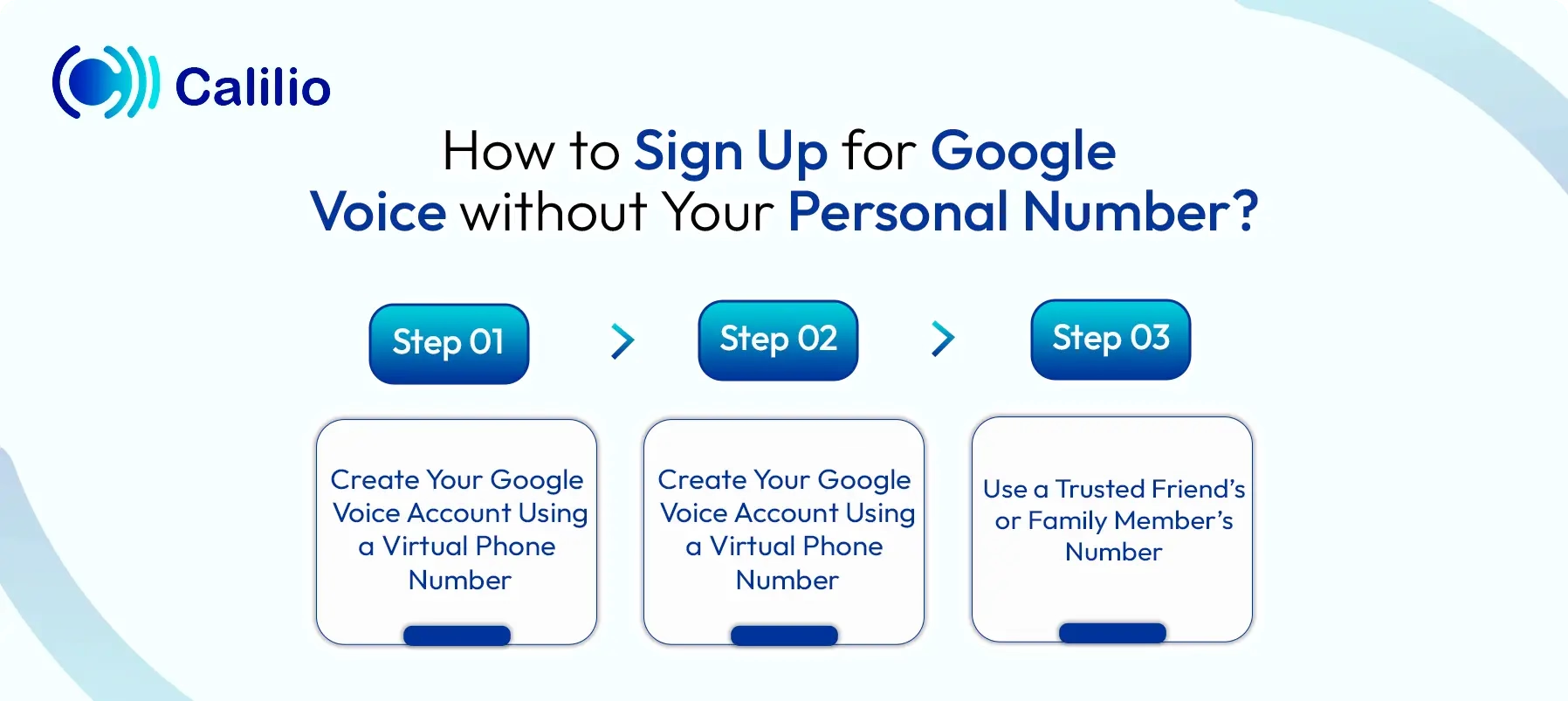
1. Create Your Google Voice Account Using a Virtual Phone Number
One of the easiest ways to sign up for Google Voice without a personal number is by using a virtual phone number. These cloud-based numbers work over the internet and don’t require a physical SIM card. You can also access them from any device, including smartphones, tablets, and laptops.
Depending upon the user's need, there are mainly two types of virtual numbers:
A. Temporary Virtual Number
A temporary virtual number is perfect for one-time verification during Google Voice registration. These numbers are usually free and do not require any registration or subscription.
Here is how you can create a Google Voice account with a temporary number:
- Visit a temporary virtual number provider's website like Receive SMS Online, Temp Number, or SpyTM.
- Select an available US phone number.
- Enter that number during Google Voice signup.
- When Google sends the verification code (OTP), go back to the provider’s site and check for incoming SMS.
- Enter the OTP when asked by Google Voice to finish the setup.
B. Subscription-based Virtual Phone Number
A subscription-based VoIP number is a secure and private option for signing up to Google Voice, especially for users who plan to use the service regularly.
Here is how you can sign up for Google Voice using a subscription-based virtual number:
- Choose a trusted VoIP number provider like Calilio, RingCentral, or Nextiva
- Create an account using your email and other necessary credentials.
- Subscribe to a plan and select your preferred US virtual phone number.
- Provide basic details along with the necessary documents to activate the number.
- Wait for the number to be activated and ensure it can receive SMS.
- Enter the US-based VoIP number when asked for verification.
- Check your provider’s dashboard for Google’s OTP.
- Enter the OTP to complete the sign-up process.
Disclaimer: OTP delivery is controlled by Google Voice, not Calilio. In some cases, Google Voice may restrict or block verification codes to VoIP numbers, which means you may not receive OTPs on your Calilio number.
2. Create an Account with a Burner Phone
If you prefer a temporary solution, using a burner phone is another way to verify your Google Voice account. A burner phone is a phone that comes with a prepaid SIM card, is inexpensive, and allows you to receive verification codes without linking your personal identity.
Simply activate the SIM, use the number during Google Voice setup, and discard it. This method is best for users who want a one-time, disposable verification option.
3. Use a Trusted Friend’s or Family Member’s Number
You can also set up a Google Voice account by using the number of a trusted friend or family member for verification. Make sure the number hasn’t been used for Google Voice before, and ask for their permission to receive the verification code on your behalf.
Once they agree, begin the Google Voice signup process and enter their phone number when prompted. After Google sends the OTP to their device, ask for the code and enter it into the verification field. As soon as the code is accepted, your Google Voice account will be activated successfully.
Note: The phone number used during registration is only for verification. After setup, you need to select a Google Voice number provided by Google. This will be your actual number for calling and texting.
Top Virtual Number Provider to Create a Google Voice Account
Calilio, Textverified, Hushed, and Burner are some of the best VoIP number providers to sign up with Google Voice.
1. Calilio
Calilio is one of the top virtual number providers if you want to get a personal VoIP number. Plus, you can receive and use verification codes instantly from its dashboard without navigating multiple sections. It also offers a free US/Canada-based phone number with any subscription plan.
2. Textverified
Textverified is a practical choice if you need a quick, one-time verification without a long-term commitment. It focuses on providing secure numbers that are regularly refreshed to match updated security and authentication requirements. As a result, the chances of rejection from Google Voice are lower.
3. Hushed
Hushed is one of the top VoIP number providers for users who want privacy and flexibility. It allows you to purchase numbers that support both SMS and voice calls, which helps with different types of verification processes. In addition, it offers encryption and privacy-focused features. Because of this, you can use the number not only for account setup but also for long-term use.
4. Burner
Burner is known for offering numbers that closely match traditional cellular lines. These numbers are more trusted by verification systems, so they are less likely to be rejected by automated filters. As a result, it works well for users who want a dependable virtual number. It is a suitable option if you need a simple yet stable solution that performs like a regular mobile number.
Things to Consider While Choosing a Virtual Number Provider
When choosing a virtual number provider for Google Voice, select a secure number that supports both SMS and voice, and comes from a trusted US-based source with a clean usage history.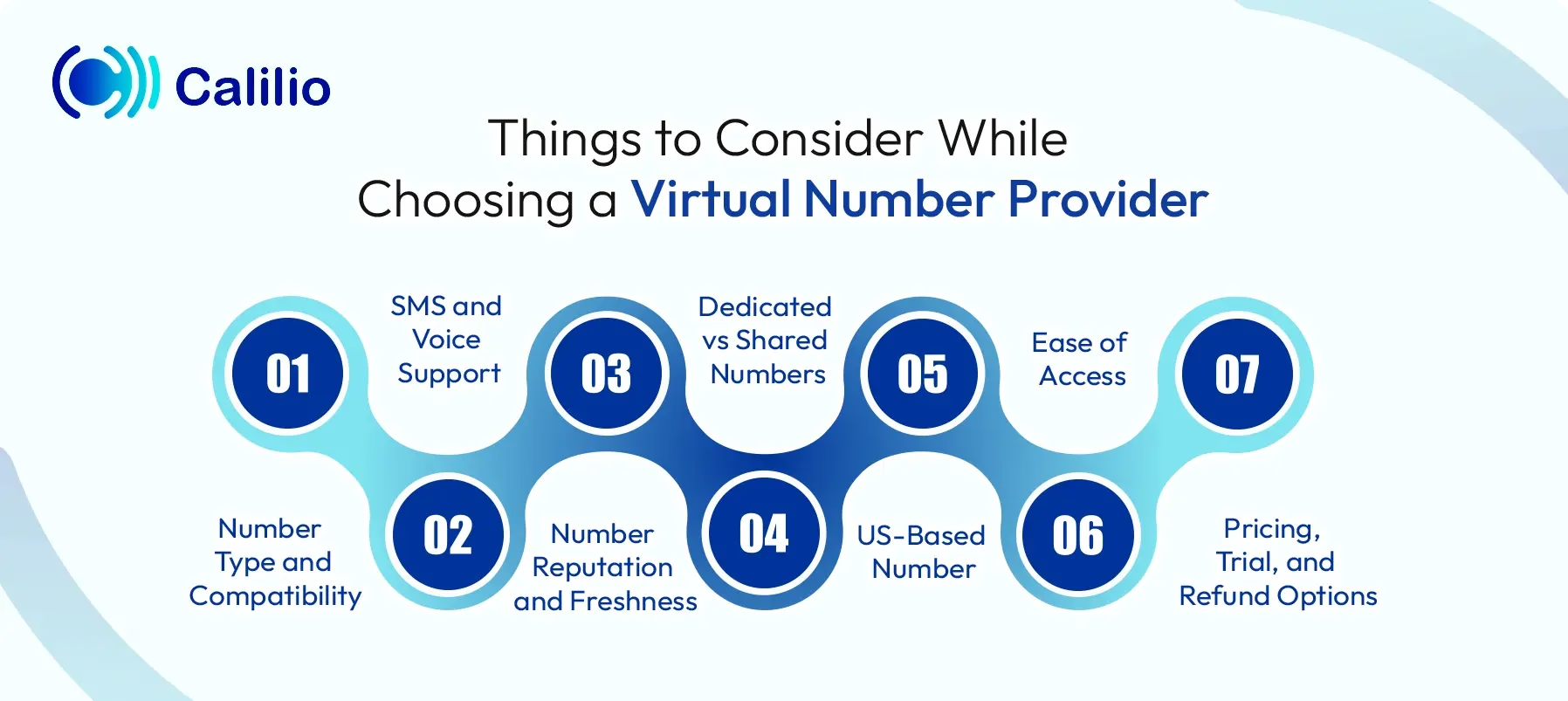
- Number Type and Compatibility: Choose a secure VoIP number that has a higher acceptance rate, as Google often rejects free or shared numbers.
- SMS and Voice Support: Make sure the number supports both SMS and voice calls. This helps if Google switches from text to call verification.
- Number Reputation and Freshness: Use fresh and clean numbers that have not been used before. Reused numbers are often flagged and rejected.
- Dedicated vs Shared Numbers: Prefer dedicated numbers over shared ones. Shared numbers are more likely to be blocked due to repeated use.
- US-Based Number: Check if the provider offers a US-based number, since Google Voice is only available in the US for personal use. This improves your chances of successful verification.
- Ease of Access: Choose a provider with a simple dashboard. This helps you access verification codes quickly without confusion.
- Pricing, Trial, and Refund Options: Check the pricing model and look for trial or refund options. This helps reduce risk if the number does not work.
Conclusion
Although you can not sign up for Google Voice without a phone number, there are different ways to keep your personal number private. By using a compatible virtual number, you can activate your account and still access full features without exposing your personal data.
However, your success depends on the number you choose. Google’s system can quickly reject low-quality or reused numbers. Therefore, selecting a provider that offers carrier-backed or high-reputation numbers is important. In addition, it supports both SMS and call verification to help you avoid common issues during signup.
Summarize this blog with:
Frequently Asked Questions
Everything you need to know about Calilio. Can't find your answer? .
Yes, you need a phone to sign up and verify your account. However, after activation, you can use Google Voice over the internet on any device without keeping a phone linked.
Stay in the loop
Get the latest call insights, trends, and updates delivered straight to your inbox.
By subscribing, you agree to receive updates from Calilio.
You can unsubscribe anytime.
#1 Cloud Phone System for
|
Improve your business operation with Calilio's advanced virtual phone system. Join today for a better way to connect.