
How Do You Make a Phone Call from a Browser?

When you’re working on your computer and need to make a quick call, switching to your mobile or desk phone can interrupt your workflow. Luckily, there are ways to avoid that extra step.
You can make a phone call from a browser using Voice over Internet Protocol (VoIP) technology. With a built-in web dialer or a browser extension from a cloud-based phone service provider, the calls can be made from within the webpages in just a few clicks.
In this guide, we’ll explain step-by-step how to make calls from a browser using a cloud phone system. We’ll also explain the benefits of browser-based calling, common challenges, safety considerations, and the basic requirements needed to get started.
Key Highlights:
You can make a phone call from a browser using a web dialer or a Chrome extension without relying on desk phones.
Businesses often prioritize calling from a browser because it removes hardware dependency and keeps communication inside web-based tools like CRM and support systems.
A stable internet connection, a WebRTC-supported browser, and a VoIP service provider are required to get started with browser calling.
Common issues when you make a phone call from a browser, such as poor audio or firewall restrictions, can usually be resolved by using a stable internet, updating browsers, and configuring network settings to allow VoIP calls.
Can You Really Make a Phone Call from a Browser?
Yes, you can make a phone call directly from a web browser. Modern browsers support real-time communication through technologies such as WebRTC (Web Real-Time Communication) that capture your voice through a microphone and transmit it securely over the internet.
However, the browser alone does not handle the entire calling process. You’d need a cloud-based VoIP phone system that manages call routing, signaling, and connections. When you log in to the phone system, your browser connects to the provider’s servers over the internet to route your call. This allows you to place a phone call without relying on a traditional phone line or physical desk device.
Major browsers, including Google Chrome, Microsoft Edge, Safari, and Firefox, support browser-based calling.
What Do You Need to Make a Phone Call from a Browser?
To make a phone call from a browser, you need a stable internet connection, an updated web browser that supports WebRTC, an active account with a VoIP phone service provider, and a microphone or headset.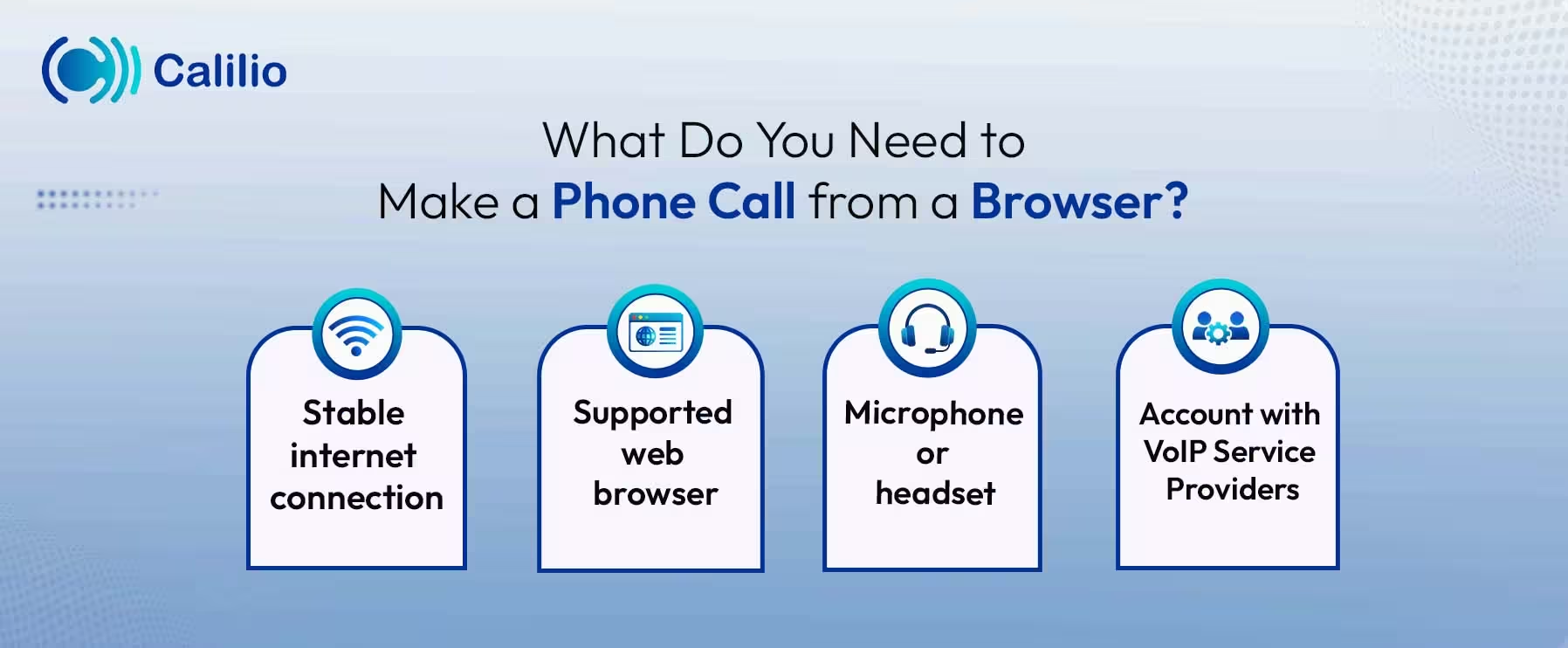
- Stable Internet Connection: Since calls run over the internet, a reliable and reasonably fast connection ensures clear audio without lag.
- Supported web Browser: You’ll need to use an updated version of Chrome, Edge, Safari, or Firefox that supports WebRTC.
- Microphone or Headset: A built-in laptop microphone works for the call, but you’ll need a headset for improved sound quality and to reduce echo.
- Account with VoIP Service Providers: You need an active subscription with a cloud phone provider that supports browser-based calling.
How Do I Make a Phone Call from My Browser?
You can make a phone call from a browser through a web-based dashboard or a browser extension from a VoIP provider. From a web-based dashboard, you’ll use the provider’s web dialer for the call, while a browser extension offers you the ability to implement the click-to-call feature in your browser.
A. Web Dialer Inside a VoIP Web App
A web dialer allows you to call regular mobile or landline numbers directly from your browser. After creating an account, you log in to the provider’s web dashboard, enter the phone number in the built-in dial pad, and start the call over the internet using a virtual phone number.
- Step 1: Sign Up with the VoIP Service Provider
Open the VoIP provider’s website in your browser, select the plan, purchase a virtual number, and create an account. - Step 2: Open the Web Dashboard
After setup, log in to the web dashboard of the provider in your browser. - Step 3: Use the Built-In Dialer
Find and open the built-in dialer and enter the phone number you wish to call. - Step 4: Click Call
Press the call button to start the call.
B. Click-to-Call Feature with a Browser Extension
A browser extension enables you to instantly call any number that appears on your web pages. After installing and connecting the extension to your browser, phone numbers on any website become clickable. When you click a number, the extension automatically places the call through your web-based calling system without manual dialing.
- Step 1: Install the Browser Extension
Download the provider’s Chrome extension or supported browser add-on. - Step 2: Connect the Extension to Your Account
Log in and link the extension to your VoIP dashboard. - Step 3: Click Any Phone Number on a Web Page
Once activated, phone numbers become clickable on web pages. Simply, click on the number to start calling.
Start Calling Directly from Your Browser with Calilio’s Secure Cloud-Based VoIP Phone System
Why Do Businesses Prefer Calling Directly from the Browser?
Businesses prefer calling directly from the browser because it removes hardware dependency and places voice communication inside the same web-based tools their teams already use.
Instead of managing desk phones or separate calling apps, teams can handle calls from within a browser, which simplifies call access, supports remote work, and reduces operational overhead.
- No Physical Desk Phones Required: Calling from a browser removes the need to assign a physical phone to every employee. There is no device to ship, no desk setup to manage, and no hardware inventory to track.
- Easy Remote and Hybrid Work Support: Browser calling fits naturally into remote and hybrid work because the phone system is tied to a user account, not a location. An employee can sign in from any approved device and continue handling calls without changing settings or forwarding calls.
- Faster Workflow and Higher Productivity: Calling directly from the browser keeps communication aligned with web-based business tools. Sales and support teams can initiate calls from customer records, ticket systems, or contact databases without switching devices, which helps teams respond quickly and work more efficiently.
- Lower Maintenance Costs: Since communication runs through the browser, there is no physical phone hardware to maintain, repair, or replace, which reduces infrastructure expenses over time.
- CRM Integration: With browser calling, calls can be linked directly to customer records. Contact details, notes, and call history stay connected, which improves follow-ups and reduces manual data entry.
Is It Safe to Make a Phone Call from a Browser?
Yes, making a phone call from a browser is safe when you use a reliable and trusted provider.
The level of security, however, depends on how the platform protects your data and controls user access. Reputable providers apply several safeguards to keep calls and account information secure.
Key security measures that a trusted provider follows include: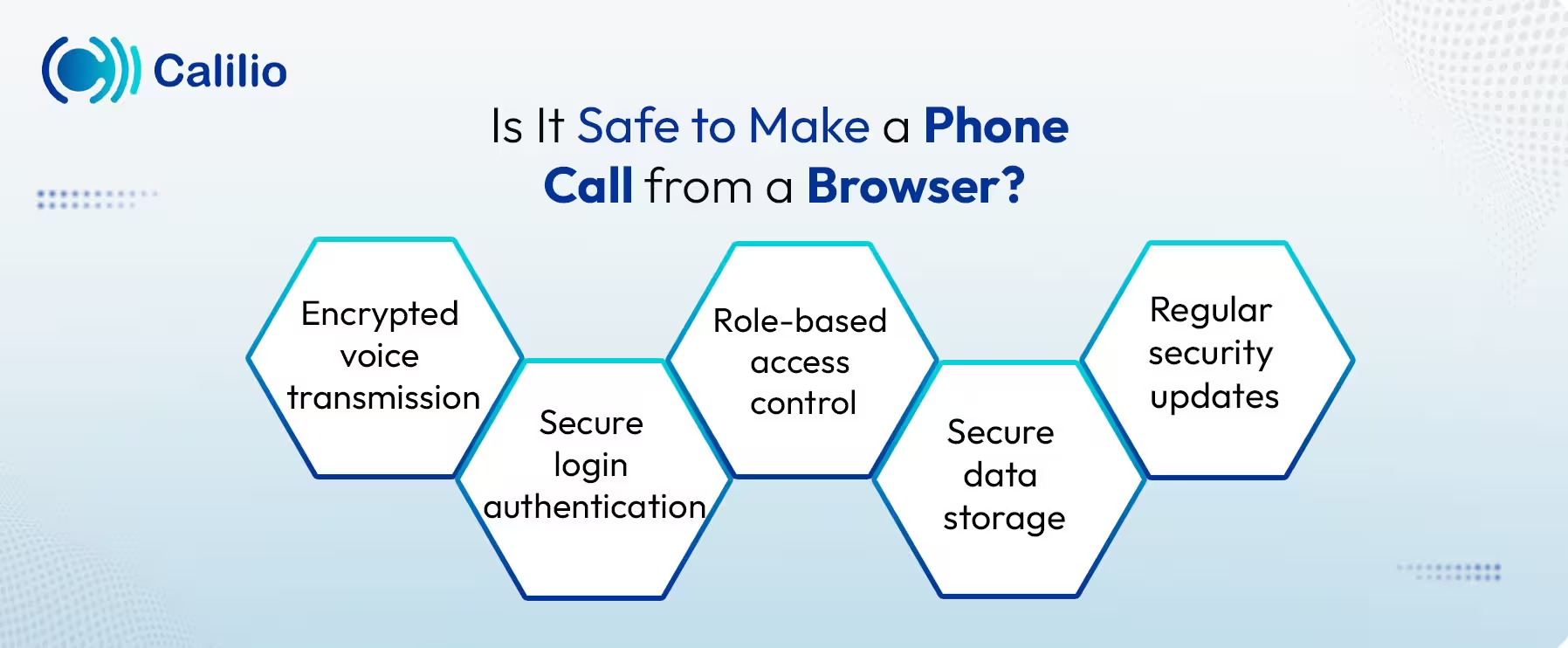
- Encrypted Voice Transmission: Encrypts every voice data that travels over the internet. The encryption prevents others from intercepting or listening to the call during transmission.
- Secure Login Authentication: Most of the VoIP platforms use strong password protection and often two-factor authentication to prevent unauthorized account access.
- Role-Based Access Control: Administrators use role-based controls to decide who can access call logs, listen to recordings, or change system settings. This limits internal misuse.
- Secure Data Storage: Call records and recordings are stored in secure cloud environments with restricted access.
- Regular Security Updates: Reputable providers also perform regular security updates and systems monitoring to prevent vulnerabilities and maintain protection.
Common Issues with Browser Calling & How to Fix
When making a phone call from a browser, you may encounter issues like poor internet connection, echo from speakers, firewall restrictions, and outdated browsers.
You can fix these issues by enabling microphone access, using a stable network, switching to a headset, adjusting firewall settings, and updating your browser to ensure proper WebRTC support.
1. Poor Audio Quality or Choppy Voice
You may experience bad call quality with robotic or delayed sound when the internet bandwidth is unstable or overloaded.
Fix: Use a stable Wi-Fi connection or wired internet. Close heavy applications like video streaming or large downloads during calls.
2. Echo or Background Noise
Echo usually occurs when using the built-in laptop speakers for calls.
Fix: Use a headset instead of speakers. Keep the volume low and avoid placing the microphone close to the speakers.
3. Firewall Restrictions
Calls may fail if your network firewall blocks VoIP traffic. This is especially common on office networks.
Fix: Check firewall settings or ask your IT team to allow VoIP/WebRTC traffic. Restarting your router can also help solve this in some cases.
4. Browser Not Updated
Older browser versions may not fully support WebRTC calling.
Fix: Update Chrome, Edge, Safari, or Firefox to the latest version before making calls.
Conclusion
You can make a phone call from a browser using a web dialer or a click-to-call browser extension from your cloud phone service provider. Since everything runs over your internet connection, communication stays inside your workflow instead of forcing you to switch devices.
Whether you just want to make a call from your web screen or manage calls from a centralized interface, browser-based calling offers a flexible and practical solution.
Calilio makes it easy to call from a browser through its secure web-based platform. You can place a phone call directly from your dashboard or use the click-to-call feature to dial numbers instantly from web pages and CRM records. There’s no need to switch devices or open separate applications—everything works inside your browser session. It helps your team respond faster, avoid manual dialing errors, and stay inside the same workspace.
Summarize this blog with:
Frequently Asked Questions
Everything you need to know about Calilio. Can't find your answer? .
Yes, you can make a phone call from a browser using a web-based VoIP dashboard without installing desktop software. Simply log in to the service on your browser and use its built-in dialer.
Stay in the loop
Get the latest call insights, trends, and updates delivered straight to your inbox.
By subscribing, you agree to receive updates from Calilio.
You can unsubscribe anytime.
Enter the World of AI Business Phone System with Calilio
Improve your business operation with Calilio's advanced virtual phone system. Join today for a better way to connect.