- Partners
- Contact Us
- Log in
How to Forward a Text SMS to a Number or Email on Android?

Android devices offer built-in settings to forward text messages, like work or personal updates, to other phones. But the process involves three to four manual steps for each message. So, it can quickly become time-consuming when you need to forward multiple messages to another person or platform.
Fortunately, there are more effective ways to handle message forwarding beyond repeating the same steps every time. Therefore, in this guide, you will explore various options available on Android devices, from using native messaging features to exploring advanced methods that help automate your messaging workflow and save time.
Highlights:
Forwarding text messages on Android can be done manually, via copy-paste, or automatically using third-party apps, depending on your needs and frequency.
Built-in messaging apps allow quick forwarding with simple steps, though options may vary based on device brand, Android version, and interface.
Automatic forwarding tools help streamline message management by redirecting SMS to another number or email without manual effort.
You can also forward messages to email or use virtual numbers to manage communication across multiple devices and platforms.
Common issues in forwarding text, such as missing forward options, delayed messages, or OTP forwarding failures, can be resolved with simple settings adjustments and app permissions.
How to Forward a Text Message on Android?
To forward a text message on Android, you can use the built-in messaging app or simply copy the text and send it as a new text. Plus, you can use third-party apps for advanced text forwarding.
1. Manual Method (Using Built-in Messaging App)
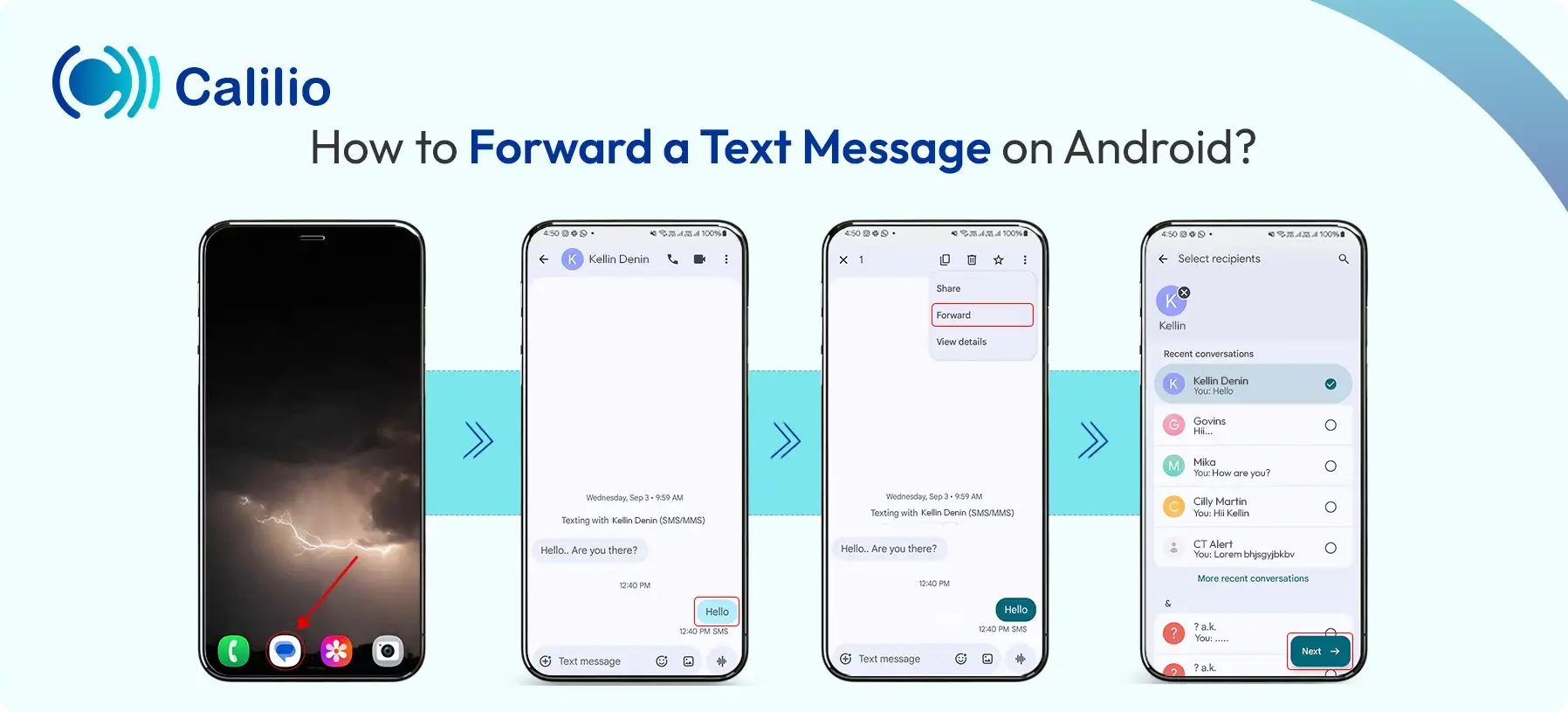
To forward an SMS on an Android phone using the built-in messaging app, open your Android messaging app and the conversation, then press and hold the message you want to forward. Tap Forward, choose the contact, and Send.
- Open the messaging app on your phone.
- Find the conversation containing the message you want to forward.
- Tap and hold the message until options appear. Or in some cases, you need to tap three vertical dots on the top right corner for the options.
- Then, tap “Forward” or, in some cases, “More > Forward”.
- Select the contact or enter the phone number.
- Tap “Send."
2. Copy-Paste Method
Another easy way to share a text message on Android is by manually copying the text message and pasting it as a new message to the preferred contact. Here are the detailed steps to follow:
- Open the message app and select the message you want to forward.
- Tap and hold the message and select the copy symbol on the top right corner.
- Open a new message.
- Tap and hold in the text field and select “Paste.”
- Tap “Send.”
3. Automatic Method (Using Third-Party Apps)
To forward messages on Android automatically with third-party apps, install an SMS forwarding app like SMS Forwarder, open it, and grant the required permissions. Then, create a forwarding rule, add the recipient details, and save to automatically redirect messages based on your settings.
- Open the Google Play Store on your phone and install apps like SMS Forwarder or Auto Forward SMS.
- Open the app and grant the necessary permissions.
- Tap the “+” option to create a forwarding rule and choose the preferred options.
- Enter the recipient's phone number or email where messages must be forwarded.
- Tap save and confirm the setting.
- The app will forward text based on the criteria.
How to Forward Text Messages to Email on Android?
To forward text messages to email on Android, you can manually select a message in your messaging app, use the share/forward option, and send it through your email app. For automatic forwarding, use an app that syncs SMS to email by setting rules and permissions.
1. Manual Method
- Open your messaging app (e.g., Google Messages) and the conversation.
- Long-press the specific message bubble to highlight it.
- Tap the three-dot menu or More, then select Forward or Share.
- Select your email app (e.g., Gmail) from the app list provided in the share sheet.
- Enter the email address and tap the Send icon.
2. Automatic Method
To forward your incoming texts to an email automatically, you need to install an app like SMS Forwarder from the Google Play Store, as mentioned before. So, the steps are similar, where you grant the necessary permissions for SMS access.
Then, within the app, create a new forwarding rule by selecting the "Email" destination and entering your preferred email address. Once you save and confirm these settings, the application will automatically redirect all incoming messages to your inbox in real-time, providing a seamless, hands-free archival system.
How to Forward Text Messages Using a Virtual Number?
To forward text messages using a virtual number, sign up with a provider, access your account dashboard, and enable the SMS forwarding feature in settings. Add the phone number as the destination, verify it with the code sent, and save the setup to start automatically redirecting messages.
- Acquire a virtual number by signing up for a service such as Verizon, Quo, or Grasshopper.
- Log in to the provider’s mobile app or web dashboard and navigate to the Settings or Phone Numbers menu.
- Locate the option labeled "SMS Forwarding" or "Forward messages to linked numbers."
- Enter the preferred phone number as the destination.
- Verify the link by entering the confirmation code typically sent to your device by the provider.
- Save your changes and send a test message to your virtual number to ensure it redirects correctly to your primary messaging app.
Note: These steps are generalized and may differ from the actual steps depending on the virtual phone number providers.
Text Forwarding Issues on Android & Their Solutions
Text forwarding issues on Android, like delays, missing options, or OTP failures, are often caused by battery restrictions, app settings, or system limitations. These can be resolved by allowing background activity, adjusting app permissions, clearing cache, checking network or filtering settings.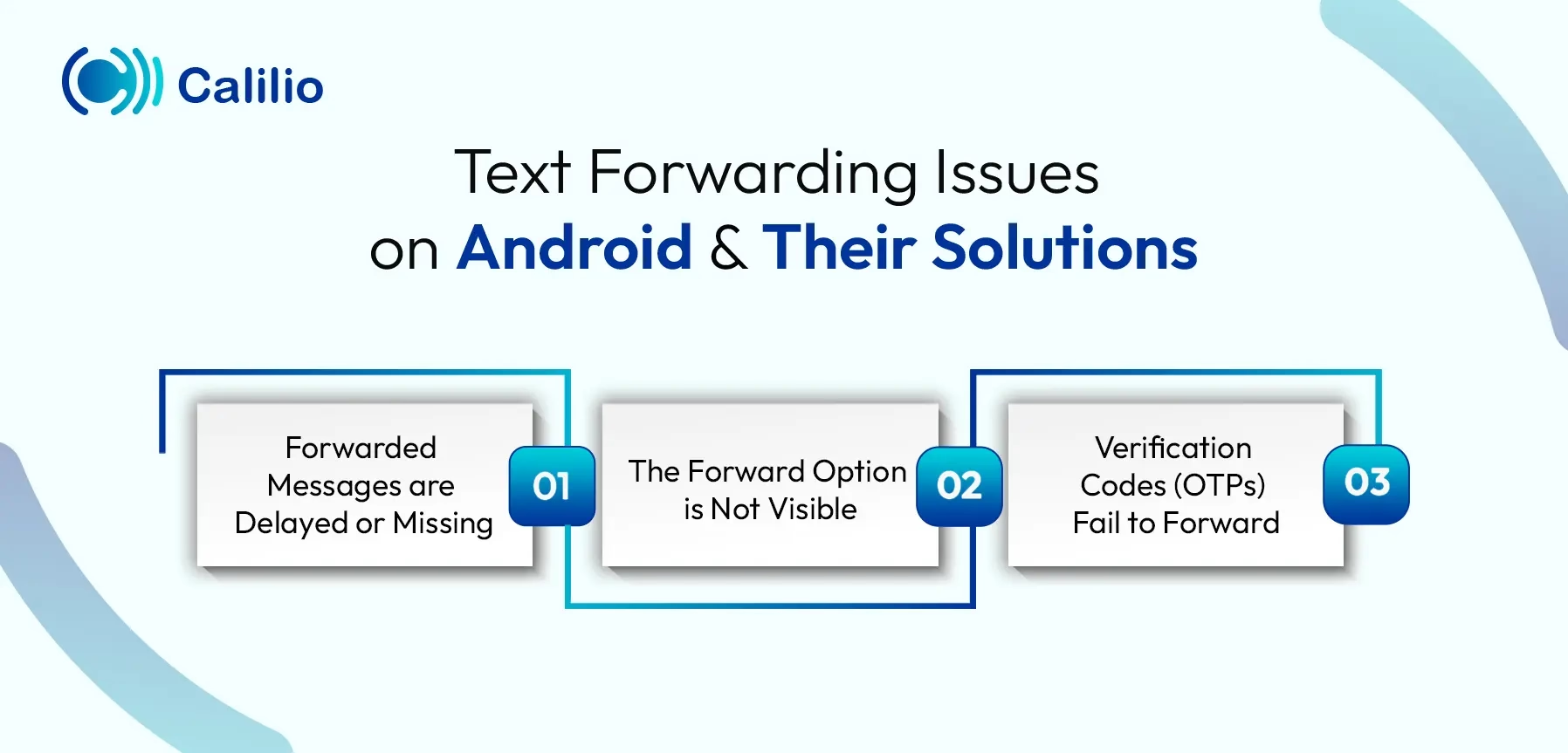
1. Forwarded Messages are Delayed or Missing
This is the most frequent issue, usually occurring when the Android system halts background applications to preserve battery life, preventing real-time redirection.
Here are the probable solutions:
- Navigate to Settings > Battery > Battery Optimization, find your forwarding app, and set it to "Don't Optimize" so it remains active.
- Ensure Background Data is enabled for your messaging and forwarding apps in the "App Info" settings.
- Disable Adaptive Battery or any "Ultra Power Saving" modes that might be restricting network activity.
- Restart your device to refresh the background services and clear minor system hangs.
2. The Forward Option is Not Visible
Sometimes the "Forward" button disappears from the menu, which can happen if multiple messages are selected or if you are trying to act directly from a notification.
Here are the probable solutions:
- Long-press only a single message bubble at a time; selecting multiple texts often hides individual forwarding options and only shows the delete button.
- Open the conversation thread fully instead of trying to forward from the notification shade or lock screen.
- Tap the three-dot menu (⋮) in the top-right corner after selecting a message, as some UI updates tuck the forward option inside this sub-menu.
- Clear the messaging app's cache under Settings > Apps > Messages > Storage to fix interface glitches.
3. Verification Codes (OTPs) Fail to Forward
You may find that standard texts forward perfectly, but critical security codes or "short-code" messages (5-6 digit numbers) do not reach the destination.
Here are the probable solutions:
- Contact your mobile carrier to ensure they haven't placed a spam filter on your account that blocks the automated redirection of security alerts.
- If forwarding to email, check your Spam or Junk folder, as email providers often flag forwarded automated texts as suspicious.
- Verify that you have a strong cellular signal, as many 2FA codes expire quickly and won't forward if the initial delivery is delayed.
Conclusion
Efficiently forwarding text messages on Android is about more than just transferring information—it’s about simplifying your workflow and making sure nothing important slips through the cracks. While manual methods are fine for occasional needs, automation tools and virtual numbers provide a more dependable, hands-off approach for managing larger volumes of messages.
For more professional communication, using a phone system like Calilio is an even better option. It offers advanced features such as number sharing and a shared team inbox, allowing multiple team members to access the messages without the need for constant forwarding.



Summarize this blog with:
Frequently asked questions
Can I forward a message to multiple people at a time?
Yes, you can forward messages to multiple people simultaneously: Tap and hold the message > Tap Forward> Select multiple contacts > Send.
Can I unsend a forwarded message?
Can I forward a text message on Android?
How do I share an SMS with another phone?
How do I forward text messages to another number?

Still have questions?
Can’t find the answer you’re looking for? Please chat with our friendly team.
Stay in the loop
Get the latest call insights, trends, and updates delivered straight to your inbox.
By subscribing, you agree to receive updates from Calilio.
You can unsubscribe anytime.
Enter the World of AI Business Phone System with Calilio
Improve your business operation with Calilio's advanced virtual phone system. Join today for a better way to connect.