- Partners
- Contact Us
- Log in
How to Start a 3-Way Conference Call on Android?

Group communication is more important than ever, whether you’re coordinating with remote teams, collaborating with study groups, discussing with clients, or simply making plans with friends/family. Quick group conversations help decisions happen faster and keep everyone aligned. However, many people are unaware that they can host small conference calls directly from their Android phones.
Instead, they end up juggling multiple separate calls, hanging up on one person to dial another, putting someone on hold while explaining the same details again, or constantly switching back and forth between conversations. This can quickly become tedious and hectic, especially when you're trying to coordinate something important.
The good news is that starting a 3-way conference call on Android is much easier than it seems once you know where the controls are. In this guide, you’ll learn exactly how to set up, manage, and expand conference calls on your Android device. Plus, we'll explore everything from the basic native dialer to using internet-based calling apps when your guest list grows beyond a few people.
Key Highlights:
A 3-way call on Android lets you combine multiple active calls into one conversation directly from the default Phone app, without installing extra apps.
You can control the session using built-in options like Add Call, Merge, Hold, Split, Mute, and Remove (availability may vary by device and carrier).
Call stability depends heavily on a strong cellular signal or VoLTE support, and weak coverage can result in dropped calls or poor sound quality.
Native 3-way conference calling lacks advanced features such as screen sharing or detailed moderation tools.
For larger meetings or professional collaboration, VoIP apps and cloud-based conferencing platforms offer greater participant capacity and enhanced controls.
What is a 3-Way Call?
A 3-way call is a built-in call conference feature on smartphones that allows you to connect multiple separate phone calls into one shared conversation. In simple terms, it lets you talk to 3-5 people at the same time using your phone’s default dialer, without needing any third-party apps.
In technical terms, your Android phone acts as a bridge between other devices. When you initiate a 3-way call, your device creates a central connection point that merges distinct signals into one shared audio stream. Instead of two people talking in a straight line, your phone creates a "hub" where everyone can hear and speak to each other simultaneously.
Although the 3-way call feature is a type of conference call, the overall meaning of conference call is different. Here are the key differences between 3-way and conference calls:
Difference Between 3-Way and Conference Calls
The main difference between a 3-way and conference calls lies in participant capacity and available features. Here is a detailed comparison:
Feature | 3-Way Call | Conference Call |
| Participant Limit | Usually limited to 5-6 people, including you | an include 5, 10, or even 100+ participants |
| Technology | Standard cellular network (carrier-based) | Cellular or internet-based |
| Features | Basic controls: Merge, Hold, End | Advanced tools: Screen sharing, AI features |
| Reliability | Depends on cellular signal strength | Depends on data speed or Wi-Fi stability |
How to Do a Three-Way Conference Call on Android?
To initiate a conference call on Android, call the first participant and, once the call is connected, tap the “Add call” option to dial the next person. After they answer, press Merge to combine both calls into one. You can repeat the same process to include more participants, depending on your carrier’s supported limit.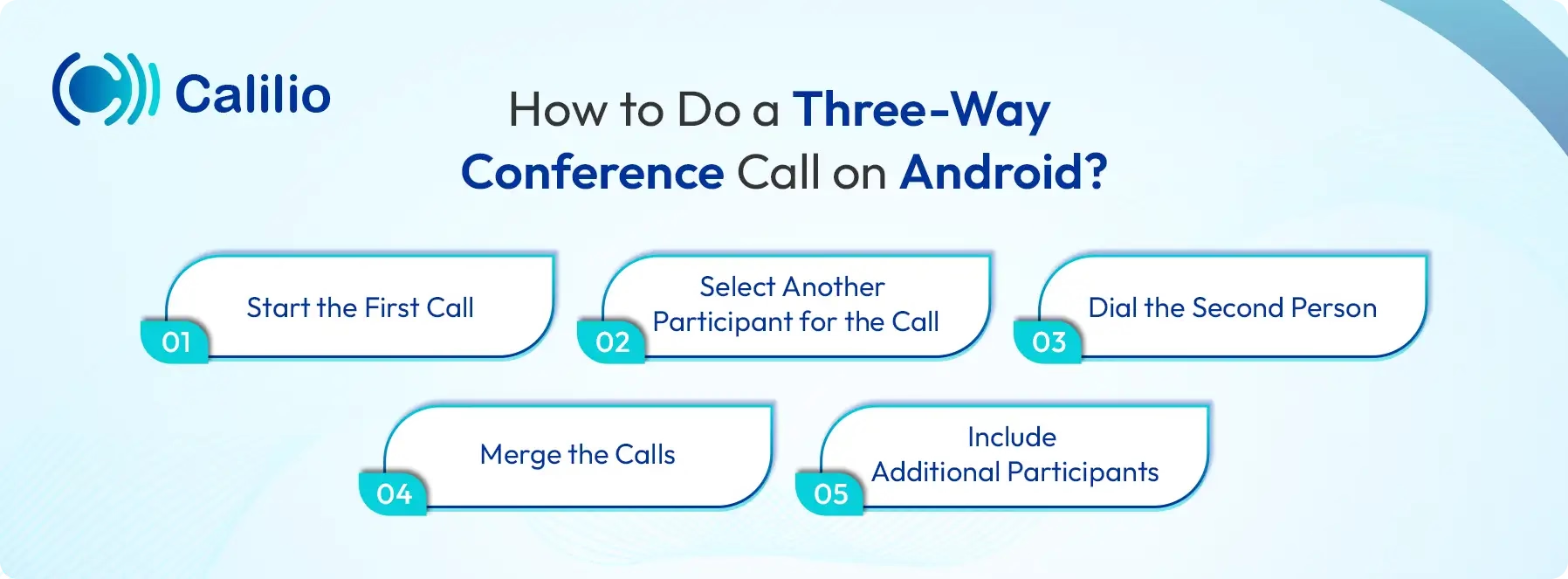 Here are the detailed steps:
- Start the First Call: Launch the Phone app, dial the first participant and wait for the call to connect.
- Select Another Participant for the Call: On the active call screen, tap the Add call (+) button. This will automatically place the first caller on hold.
- Dial the Second Person: Select another participant from your contacts and call them.
- Merge the Calls: Once the second call connects, tap Merge to join both participants into a single conference call.
- Include Additional Participants: To add more people, repeat the Add call and Merge steps until you reach your carrier’s maximum participant limit.
Note: These are the general steps for all Android phones. So, some terms and labels might vary depending on the Android version or a specific manufacturer's UI (like Samsung One UI or Google Pixel’s UI).
How to Manage a 3-Way Conference Call on an Android
To control a 3-way call, Android provides built-in features that allow you to manage the call efficiently. As the host, you can add and accept new callers, drop individuals, or speak privately without disconnecting the entire session.
How to Add an Incoming Caller to Your 3-Way Conference Call
To add a new caller while already in a session, tap Hold & Accept when the call notification appears. Once you're ready, simply tap Merge to bridge them into the existing conversation.
- Accept the Call: When the incoming call notification appears, tap Hold & Accept (or Answer). This will temporarily place your current conference call on hold.
- Merge Them into the Call: After greeting the new caller, tap the Merge button to combine them with the existing participants. They’ll now join the group conversation.
Note: To add the incoming caller to the conference call, you need to make sure the number of participants has not crossed the limit, which is usually 5 members.
How to Remove Someone from a 3-Way Conference Call on Your Android
To drop a specific person without ending the call for everyone, tap the Manage or "i" button to view your participant list. Tap the End Call or red phone icon next to that individual’s name to disconnect them while keeping the rest of the group active.
- Access Call Management: Look for an option labeled Manage, Conference, or a small downward arrow near the participant list.
- Remove the Participant: You’ll see everyone currently on the call. Tap the End Call icon (usually shown as a red phone) or the Drop button next to the specific person you want to remove. This disconnects them without ending the entire conference.
How to Talk Privately During a 3-Way Conference Call on Android
To have a private conversation with one person, open the Manage menu and tap Split or Private next to their name. This places the other callers on hold. Then, when your private chat is finished, tap Merge to bring everyone back into the main discussion.
- Select the Participant: Open the Manage or Conference menu and find the person you want to speak with privately.
- Tap Split (or Private): Selecting private call will place the rest of the conference on hold while you speak one-on-one with that participant.
- Return to the Group: When finished, tap Merge again to bring everyone back into the shared conversation.
Note: Call management features like Remove and Split are typically available only to the host (the person who initiated the conference call). If you joined someone else’s conference, you’ll usually only see options such as Mute or Hang Up.
3-Way Calls on Android: Limitations & Troubleshooting
The limitations of 3-way calls on Android include inconsistent call interfaces across devices, carrier-imposed participant caps (often around five people), and dependence on strong cellular or Voice over Long-Term Evolution (VoLTE) connectivity, which can lead to dropped or poor-quality calls.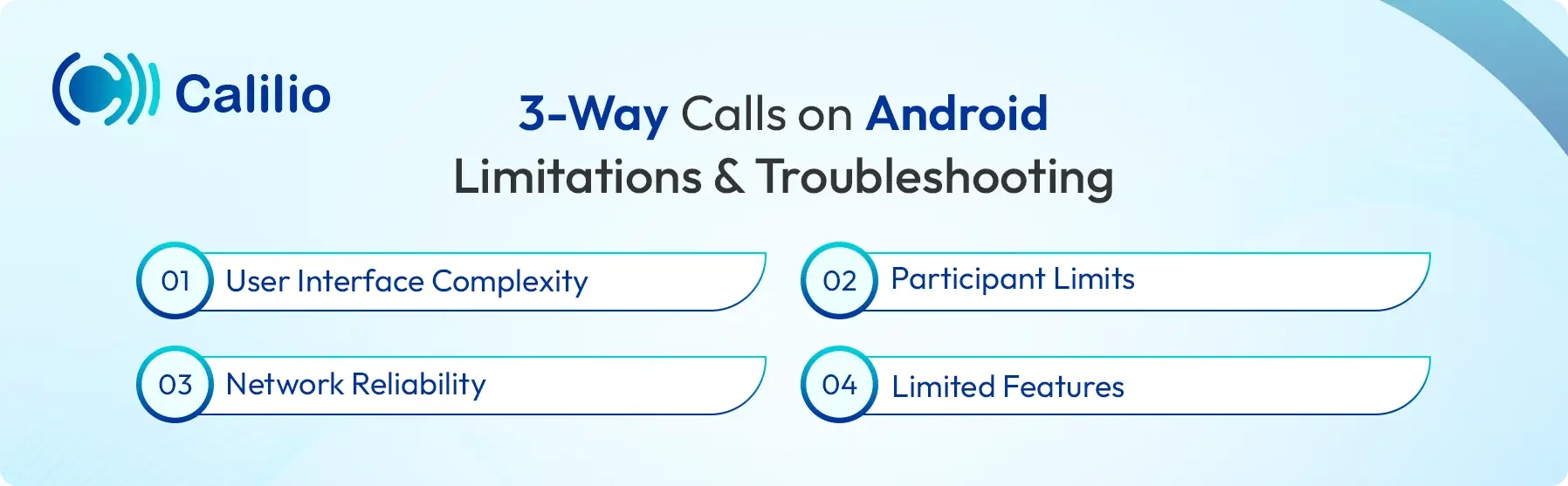
1. User Interface Complexity
Because Android is an open-source platform, each manufacturer develops its own version of the Phone app interface. So, devices from Samsung, Google, and OnePlus display different layouts, button placements, and terminology. As a result, this variation can create confusion during an active call, particularly if you are unfamiliar with your phone’s interface.
To minimize errors, familiarize yourself with your device’s specific call management interface before hosting an important call. Plus, practicing the merge process in advance can help ensure smoother execution during professional or time-sensitive discussions.
2. Participant Limits
Most mobile carriers, including Verizon, T-Mobile, and AT&T, impose a limit on native conference calls. In many cases, the total number of participants is capped at five, including the host. If you attempt to exceed this limit, the “Add call” or “Merge” option becomes unavailable, preventing additional participants from joining through the standard dialer.
Therefore, for larger group discussions, transitioning to a Voice over Internet Protocol (VoIP) platform is recommended. Applications such as WhatsApp, Google Meet, and Zoom support significantly higher participant counts and are not constrained by traditional carrier-based conference call limits.
3. Network Reliability
Native 3-way calls rely on a stable cellular signal or a strong VoLTE connection to maintain multiple simultaneous audio streams. If signal strength is weak or inconsistent, users experience call drops, degraded audio quality, or difficulty activating the “Merge” function.
To improve reliability, ensure that VoLTE is enabled within your device’s Connections or Mobile Networks settings. Likewise, in areas with limited cellular coverage, enabling Wi-Fi calling provides a more stable alternative, as it allows the call to be routed through a broadband internet connection rather than relying solely on cellular towers.
4. Limited Features
The native Android Phone app is designed primarily for standard voice communication and does not include advanced conferencing tools. Features such as screen sharing, detailed participant controls, or background noise management are generally unavailable within a standard 3-way call.
Additionally, in most cases, if the host disconnects, the entire conference call ends for all participants. This structure can be restrictive in professional settings where conversations need to continue independently of the initiator.
For meetings that require moderation tools, recording capabilities, or enhanced participant management, a dedicated conferencing platform or business phone system is typically more appropriate.
How to Make Conference Calls on Android with More than Five People
To make conference calls on Android with more than five people, use Wi-Fi calling apps, Voice over Internet Protocol (VoIP) services, or cloud-based business phone systems.
1. Use Internet-based Calling Apps
Internet-based messaging applications are a practical solution for mid-sized group discussions with colleagues, classmates, or friends. These platforms use Wi-Fi or mobile data instead of traditional cellular minutes, often supporting between 32 and 50 participants in a single call.
Because these apps are built for dynamic group interaction, participants can join or leave the call without terminating the entire session. This flexibility makes them well-suited for informal team collaboration or ongoing group discussions.
Widely used platforms such as WhatsApp and Facebook Messenger are convenient choices, as they are commonly installed on most devices. For users who prioritize privacy and encryption, Signal offers comparable group capacity with enhanced security standards and high-definition audio quality.
How to Start a Conference/Group Calls on Wi-Fi Calling Apps
To initiate a group session, simply open a group chat and tap the phone or video icon to ring all members simultaneously. You can also start a one-on-one call and use the "Add Participant" button to bring in more people as the conversation progresses.
- Create a Group: Open your selected messaging app and create a new group chat that includes all intended participants.
- Initiate the Call: Tap the Phone or Video icon located at the top of the group chat window.
- Confirm the Invitation: Confirm that you want to start the group call. The application will notify all members simultaneously.
- Add Other Participants: If the call is already in progress, use the “Add Participant” or “+” option to invite additional contacts.
2. Use VoIP Services
Dedicated VoIP platforms like Google Meet, Zoom, and Microsoft Teams are considered the industry standard for hosting professional and high-capacity meetings. These services are built for scalability and can support anywhere from 100 to 1,000 participants, depending on the plan.
Unlike standard calling, VoIP services create a centralized virtual meeting room with enhanced audio stability and administrative controls. They provide business-grade features such as participant moderation, screen sharing, and session recording, capabilities not available in native 3-way calls.
How to Start a Conference Call on VoIP Services
To start a meeting, generate a unique meeting link within the app and share it with your participants via email or calendar invite. Once the session is live, you can manage the group from a host dashboard to admit guests and control audio settings.
- Generate a Meeting Link: Open your VoIP application and select “New Meeting” or “Create Meeting” to generate a unique link or meeting ID.
- Distribute the Invitation: Share the link via email, calendar invite, or text message.
- Admit Participants: If a waiting room feature is enabled, tap “Admit” to allow participants into the meeting.
- Manage the Session: Use the host dashboard to mute participants, record the session, share your screen, or transfer host responsibilities if necessary.
3. Use Cloud-based Business Phone Systems
For organizations that require structured, large-scale audio conferencing, cloud-based business phone systems like RingCentral, 8x8, and GoToConnect provide a more formal solution. These platforms operate through a dedicated conference “bridge” line, allowing participants to dial a specific phone number and enter an access code to join the meeting.
This method is particularly useful when inviting external clients or stakeholders who may not have access to a specific app. This is because these platforms integrate with Android devices and offer advanced administrative capabilities, including participant identification, seamless call transfer between desk and mobile devices, and detailed call logs for record-keeping or billing purposes.
How to Start a Conference Call on Business Phone Systems
To start a conference call on business phone systems, distribute your dedicated dial-in number and participant code to your team through a formal invite. As the host, you dial into the same line and enter your admin code to activate the call and manage the participant list.
- Access Your Conference Bridge: Open your business phone application and locate your conference credentials, including the dial-in number and host access code.
- Invite Participants via Calendar: Use integration with tools such as Google Calendar or Outlook to send invitations containing joining instructions.
- Start the Conference Line: Dial the conference number and enter your host code to activate the bridge.
- Manage Participants: Use the mobile dashboard to mute lines, identify callers, record the session, or moderate the discussion as needed.
However, most modern business phone system now offers “one-tap” where you can share the meeting link through email or a calendar invite. Then, when the participants click on that link, the access code or credentials are entered automatically to join the conference call.
Best Practices for Conference Calls on Your Android Device
The best practices for conference calls on Android include using a headset or speaker in suitable environments, muting your microphone when not speaking, enabling Do Not Disturb to prevent interruptions, and staying in an area with strong network coverage.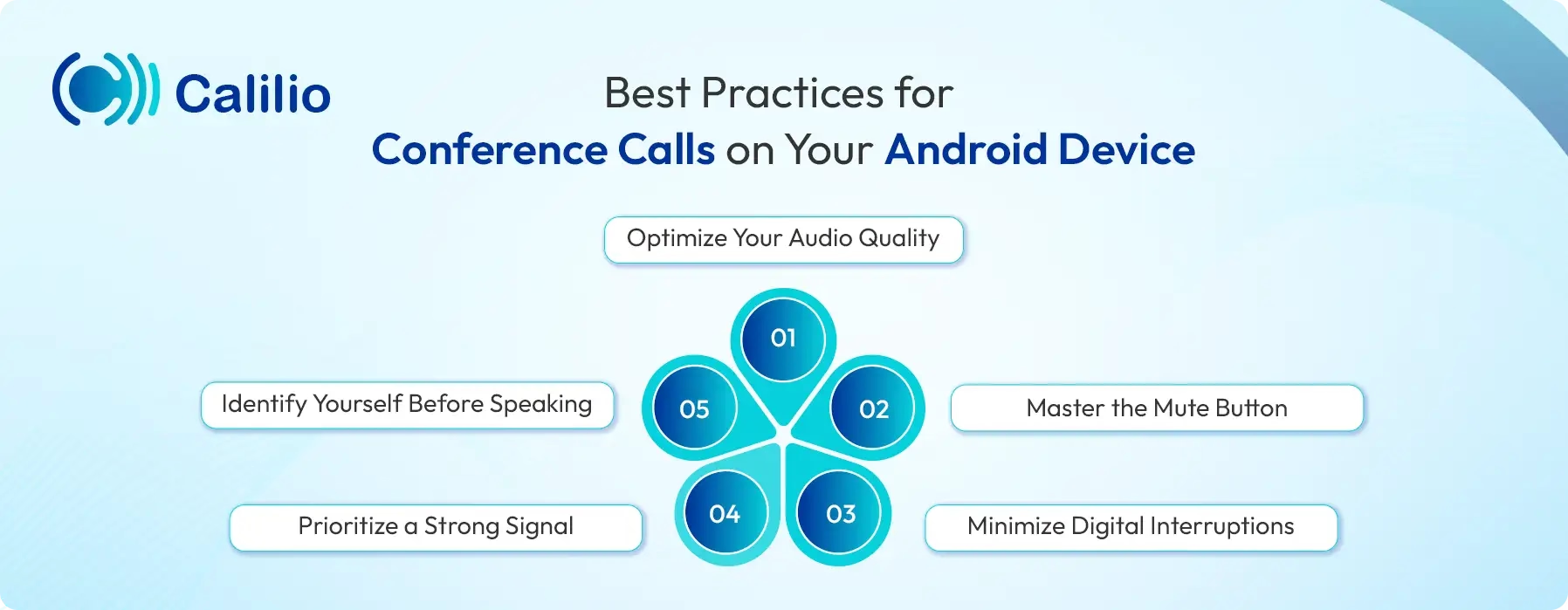
- Optimize Your Audio Quality: Use the Speakerphone icon in quiet rooms or a headset in noisy areas to block background interference and keep the conversation crisp.
- Master the Mute Button: Tap the Mute icon when you aren't speaking and suggest the same to other participants. This prevents typing, traffic, or background chatter from distracting the group.
- Minimize Digital Interruptions: Turn on Do Not Disturb before the call to prevent notification pings and text alerts from chiming in everyone's ears.
- Prioritize a Strong Signal: Stay in one spot with good reception. Moving between cellular towers can cause "jitter" or call drops, which is highly disruptive during multi-way calls.
- Identify Yourself Before Speaking: Briefly state your name before contributing so participants can follow the conversation without visual cues.
Conclusion
Conference calling on Android is more capable than many users assume. The built-in 3-way calling feature allows you to merge calls directly from the native Phone app, making it a practical solution for small, quick discussions without relying on additional applications. For everyday coordination with colleagues, classmates, or family members, this feature is often sufficient.
However, as the number of participants increases or the meeting becomes more structured, the limitations of carrier-based calling, including participant caps and limited moderation tools, become more noticeable. In such cases, VoIP platforms like Google Meet, Zoom, and Microsoft Teams offer greater scalability, reliability, and professional features.
By understanding when to use Android’s native dialer and when to transition to a dedicated conferencing solution, you can ensure your group calls remain efficient, organized, and suited to the scale of your discussion.



Summarize this blog with:
Frequently Asked Questions
How many people can join a conference call on Android?
Most Android devices allow between 3 and 5 participants using the native 'Merge' feature, though the exact cap is determined by your mobile carrier. To host larger groups, you must transition to a data-based application that bypasses these cellular network limitations.
Can I do a conference call using VoIP apps?
How to make a conference call with more than 5?
What is the best platform for conference calls?

Still have questions?
Can’t find the answer you’re looking for? Please chat with our friendly team.
Stay in the loop
Get the latest call insights, trends, and updates delivered straight to your inbox.
By subscribing, you agree to receive updates from Calilio.
You can unsubscribe anytime.
Enter the World of AI Business Phone System with Calilio
Improve your business operation with Calilio's advanced virtual phone system. Join today for a better way to connect.