- Partners
- Contact Us
- Log in
How to Text from a Computer? 9 Easy Methods

Text messages are part of daily life, and cell phones make it easy. However, spending hours on a small screen can feel draining. Plus, if you’re someone who usually works using a desktop or laptop, constantly switching between them can be a hassle.
If you’re sending long or frequent messages, whether to clients, coworkers, friends, or family, using a computer is often the better option. A larger screen and full keyboard make the task faster, more comfortable, and far less distracting.
So, in this article, we’ll explore multiple effective ways to text from your computer and keep conversations moving without leaving your desk.
Key Highlights:
There are multiple ways to send texts from your computer, including using apps, browser extensions, and VoIP services.
You can send SMS through email by using an SMS gateway or a dedicated email-to-text service.
Messaging apps like WhatsApp and Viber sync your chats across mobile and desktop.
Browser extensions allow quick texting directly from your browser.
VoIP service providers are a reliable tool for business texting using computers.
Benefits of Texting From Your Computer
Texting from a computer makes communication faster and more convenient. With a larger keyboard, you can type messages with ease and accuracy while avoiding the constant hassle of switching between devices. Here are some key benefits:
- Faster Typing: A full-sized keyboard lets you type quickly and more accurately, saving time when sending lengthy or multiple messages.
- Fewer Distractions: Sending and receiving texts directly from your computer helps you stay focused, without the need to keep checking your phone.
- Multitasking: You can keep other applications or browser tabs open, allowing you to manage tasks side by side while continuing your conversations.
- Improve Professionalism: With the ability to format text (bold, italics, bullet points), attach documents or images, and draft messages more carefully, you can present yourself in a polished manner following proper text message etiquette.
9 Simple Methods to Send Text Messages from Your Computer
You can use email, Google Messages, the Phone Link app, iMessage, free SMS websites, browser extensions, WhatsApp/Viber, or virtual phone numbers to text directly from your PC. The process of sending messages from a computer depends on your device and preferences.
1. Using Email-to-SMS Gateways
Sending and reading emails is not the only thing you can do with an email platform. You can also send an email as an SMS message from your computer using an SMS gateway address.

The gateway address depends on the carrier. For example, T-Mobile uses @tmomail.net. To send a text, you type the recipient’s phone number followed by the carrier’s gateway domain.
For instance, if you want to send a message to 1234567890 on T-Mobile, you would send it to 1234567890@tmomail.net
Below we’ve listed the SMS and MMS gateway addresses of popular phone carriers:
Providers | SMS Gateway | MMS Gateway |
| T-Mobile | @tmomail.net | @tmomail.net |
| AT&T | number@txt.att.net | number@mms.att.net |
| Verizon | number@vtext.com | number@vzwpix.com |
When you send the email, the recipient receives it as a text message on their phone. If they reply, their response appears in your email inbox.
Pros and Cons
Pros | Cons |
|
|
2. Utilizing Google Voice
Google Voice is a popular telephone service that lets you receive and send text from a computer using a VoIP number. It is a good option for one-on-one conversation. However, don’t try bulk messaging, as your account may be temporarily blocked due to potential spam concerns.

Steps to Send a Message from Google Voice
- Go to voice.google.com and sign in.
- Select the Messages tab.
- Click Send a Message.
- Enter a contact’s name or phone number.
- Type your message.
- Click Send.
Pros and Cons
Pros | Cons |
|
|
3. Employing Google Messages
Google Messages for the Web lets you text from both desktop and mobile. With features like group chat and multimedia sharing, it makes conversations easier to manage. Unlike some services, Google doesn’t send messages directly from your computer. Instead, it mirrors the Google Messages app on your phone.

To use it, your devices need to stay synced. You can connect them by scanning a QR code or by signing in with the same Google account on both your phone and computer.
Steps to Send a Text Message from Google Message
- Open the Google Message.
- Click Start Chat.
- Enter the recipient’s name or phone number.
- Type your message and click the Send.
Pros and Cons
Pros | Cons |
|
|
4. Using Microsoft Phone Link App
Microsoft Phone Link lets you send and receive text messages on your Windows PC with either an Android or an iPhone. It links your phone to your computer, so your SMS threads show up on the desktop. You can start new chats, reply, and type on a full keyboard.

Follow these steps to set up and start texting
- On your PC, open Phone Link.
- Choose Android or iPhone.
- On your phone, open or install Link to Windows (Android) or follow the iPhone setup shown in Phone Link.
- Scan the QR code and allow the requested permissions.
- On your PC, open the Phone Link app > Messages > New message, pick a contact, type, and press Send.
Pros and Cons
Pros | Cons |
|
|
5. Texting from a Mac via iMessage
iMessage is an in-built messaging feature in Apple devices that lets messages be sent over WiFi or a cell connection with an Apple ID. It is exclusively designed for Apple devices, so if you send text to an Android phone, it will be sent as a standard SMS/MMS message. You can use an iCloud account to sync devices and text SMS from a PC.

Steps to Send Text Messages Through iMessage
- Open the Messages app on your Mac.
- Tap the Compose button in the top right corner of the screen.
- Enter the recipient’s phone number or Apple ID email.
- Type your message and click Send.
Note: Since iCloud uses Apple ID to identify and link your device, ensure you use the same ID on both devices you want to pair.
Pros and Cons
Pros | Cons |
|
|
6. Using Free SMS Websites
Websites like GlobFone, AfreeSMS, SendSMSNow, TextNow, and TextFree offer free online texting without using mobile data or extra charges. With their easy-to-use interfaces and cost-effectiveness, they enhance your computer texting experience.

You can start texting from your computer for free on these SMS websites. Some let you send messages directly, while others may ask you to sign up or log in before using their service.
For instance, to send text from a computer via TextNow:
- Go to the TextNow website and log in to your account.
- Click on or open the Web Messaging section.
- Enter your intended recipient’s number .
- Type your SMS text in the message box.
- Hit Send to deliver your message.
Similarly, to text from a computer using AfreeSMS:
- Go to AfreeSMS’s official website and open the Send Free SMS page.
- Select the country of the recipient from the drop-down list.
- Enter the recipient’s phone number, in international phone number format (without trunk codes where necessary).
- Type your message in the Text Message box.
- Complete the verification step (enter the characters or digits shown in a CAPTCHA or image).
- Click Send to dispatch your text.
Pros and Cons
Pros | Cons |
|
|
7. Send Text through Browser Extensions
Browser extensions make it easy to send and respond to SMS messages right from your browser. These add-ons connect your phone or VoIP (Voice over Internet Protocol) service with your computer, giving you a simple way to manage texts without switching devices. Many services, including Pushbullet, provide this feature, such as tools that sync your phone with your browser.
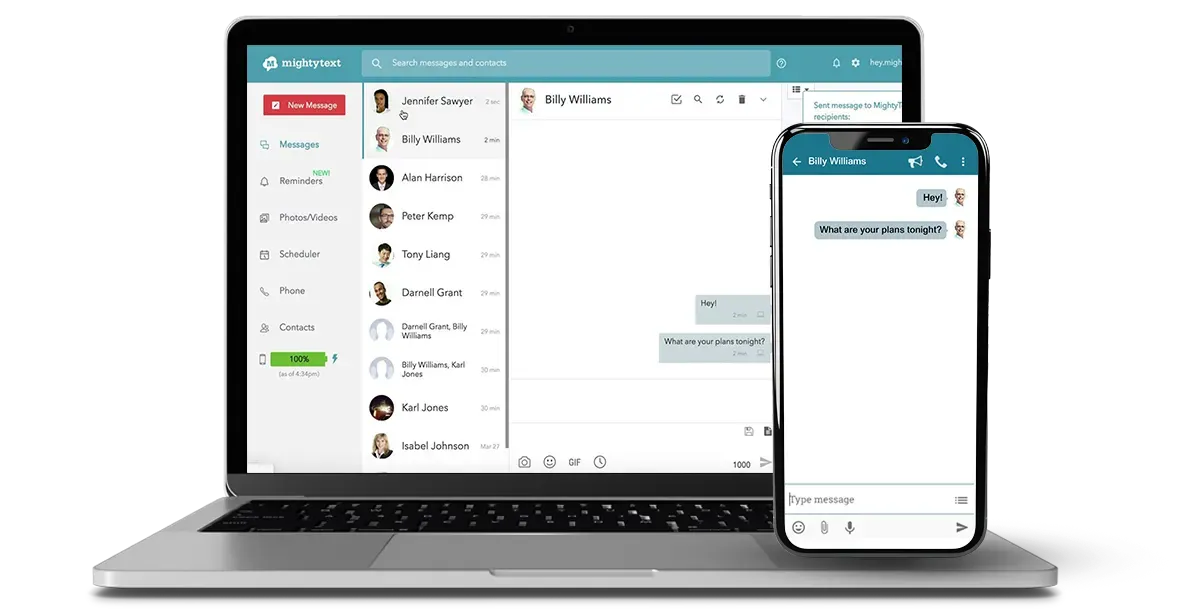
Or, you can also use RingCentral or other VoIP providers with browser extension capabilities. These services often combine texting, calling and even voicemail features, so you can handle communication directly from one place.
General steps to send text from a computer using a browser extension:
- Go to your browser’s extension store and install a messaging or VoIP extension of your choice.
- Sign up or log in with the account linked to your phone or VoIP number.
- Open the extension, enter the recipient’s number, type your message, and send it from your PC.
Pros and Cons
Pros | Cons |
|
|
8. Use Messaging Apps
Text messaging service platforms like WhatsApp and Viber also offer desktop versions, merging mobile and computer experiences. These apps let you send text messages, share files, photos, and videos, and even make audio or video calls.
To use them, you need to link your phone with the desktop app. This is done by scanning a QR code from your mobile device, which connects your account and syncs your chats across devices.
General steps to send a text message using such services:
- Open the messaging app (WhatsApp, Viber, etc.) on your computer.
- Tap on New Chat or select a contact from your synced list.
- Type your message in the chat box and click Send.
Pros and Cons
Pros | Cons |
|
|
9. Sending Text with VoIP Phone Provider
VoIP service providers are a great choice if you need to send texts from your computer, especially for medium to large-sized businesses. Most providers offer web and desktop apps that let you manage both text messages and calls in one place. With these tools, you can also handle bulk messaging, automate replies, and track conversations across devices.

Popular affordable VoIP providers like Calilio, Google Voice, Quo, and others give you the flexibility to text clients and teams directly from your PC. Many also include advanced features such as reusable templates, group messaging, and cloud storage for message history.
You must have Calilio’s virtual phone number and subscribe to its plan to enable texting from your computer.
Steps to send a text using a VoIP provider:
- Sign up with a reliable VoIP service provider.
- Open the provider’s web or desktop app.
- Go to the Messaging or SMS section.
- Enter the recipient’s phone number.
- Type your message in the text box.
- Click Send to deliver the text.
Pros and Cons
Pros | Cons |
|
|
Conclusion
Using a computer is one of the best ways to text when your phone is disconnected, broken, or lost. It is faster and more accurate than typing on a small mobile device. It also allows for multitasking—you can continue working on your computer while sending and receiving texts, minimizing distractions.
There are many options for texting from a computer, such as leveraging apps like WhatsApp, Viber, and Google Voice, or through VoIP service providers. Each has its own perks and drawbacks. However, among them, VoIP service providers are the most efficient choice.
You don’t have to worry about linking your phone to a computer, your recipient doesn’t need to be a registered user of the same app, and it doesn’t matter if they have internet access. You can simply send a text directly to their phone number.
While there are many VoIP providers, Calilio is a strong choice. You only need to sign up with us, subscribe to a plan, acquire a virtual phone number, and you can start texting easily from your PC. On top of that, Calilio offers advanced messaging features built for businesses, such as canned responses, bulk texting, and A2P messaging. These tools save time, improve customer communication, and help you manage messages at scale.



Summarize this blog with:
Frequently asked questions
Can you send a text from a computer without a phone number?
Email or online texting websites allow you to send messages from a computer without needing a cell phone number.
Can I send text from a PC to an iPhone?
Can I text from my email?

Still have questions?
Can’t find the answer you’re looking for? Please chat with our friendly team.
Stay in the loop
Get the latest call insights, trends, and updates delivered straight to your inbox.
By subscribing, you agree to receive updates from Calilio.
You can unsubscribe anytime.
Enter the World of AI Business Phone System with Calilio
Improve your business operation with Calilio's advanced virtual phone system. Join today for a better way to connect.