
One-Way Audio on VoIP Calls: Causes and Fixes
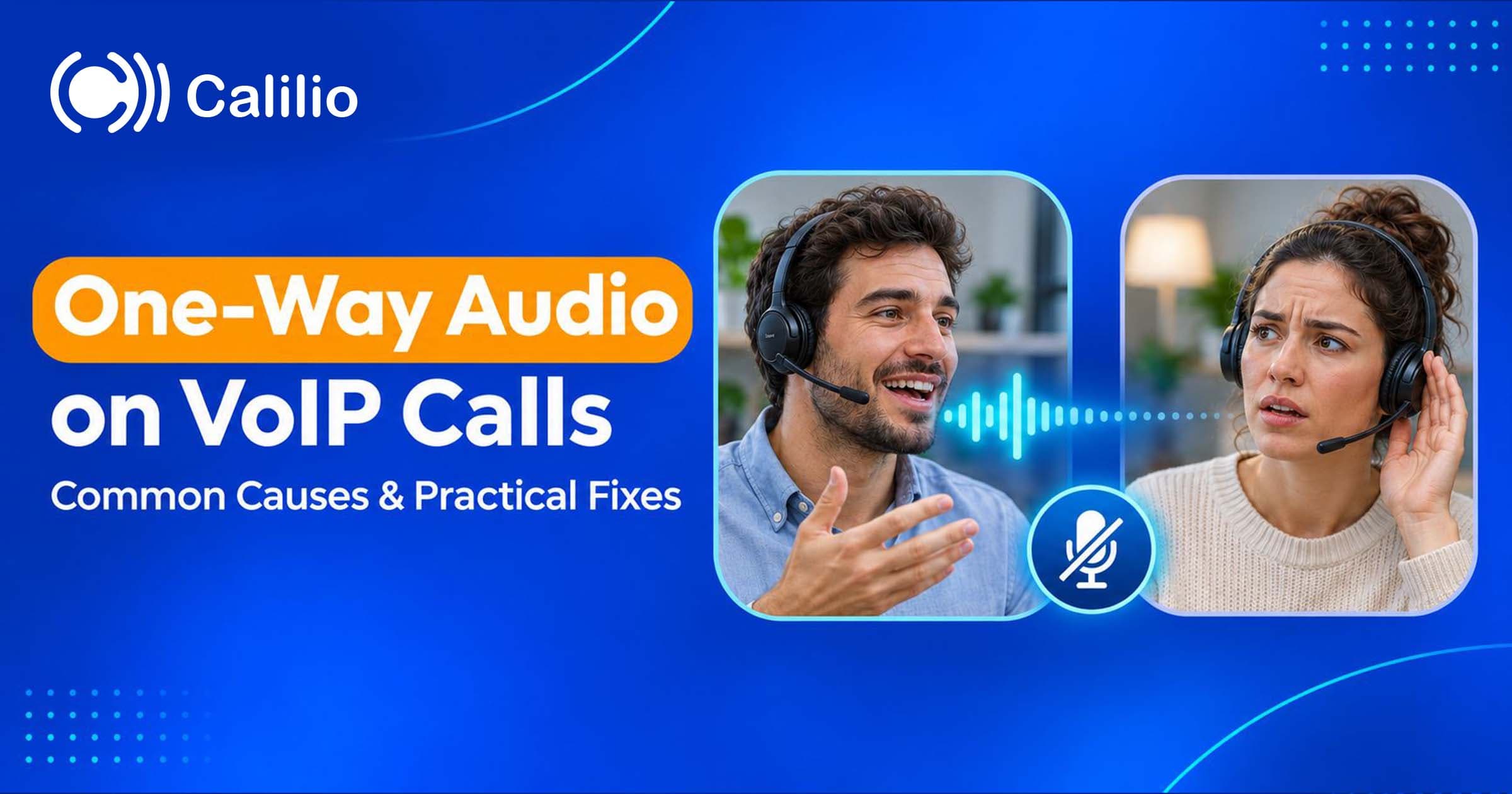

The call connects and you can hear the customer, but they keep asking whether you are there. On the next call, the headset works. The first instinct may be to blame the internet, but the missing sound could come from an input setting, a permission problem or a particular media route.
One-way audio on VoIP calls is a symptom to isolate. This guide starts with the direction of the missing sound, then separates local audio checks from network and service investigation. It covers browser and app calling as well as SIP environments, without assuming they all need the same router change.
Quick answer: One-way audio on VoIP calls means one participant can hear the other but sound does not work in the reverse direction. Start by confirming who cannot hear whom, then check mute, selected devices and microphone permissions. Compare a controlled call on another device or permitted network before investigating media connectivity with the administrator or voice provider.
- Record the missing audio direction, not just “sound is broken.”
- Check both participants’ local input and output where possible.
- A connected call does not prove the audio path works in both directions.
- Use one-variable tests to distinguish device, network and route issues.
- Keep call identifiers and avoid broad firewall changes as a first fix.
What Is One-Way Audio on VoIP Calls?
One-way audio occurs when sound reaches one participant but not the other. It is different from a call that does not connect, a small delay, echo or intermittent choppy sound.
Write the symptom from a named perspective. “The office agent hears the customer, but the customer cannot hear the agent” is clearer than “outbound audio is broken,” especially when several support teams use different definitions of inbound and outbound.
Also record when it begins: immediately after answer, after a period of conversation, after hold or after a transfer. Those are different reproduction cases and can point toward different parts of the call path.
Which Audio Direction Is Missing?
Use the table to choose the first checks, while remembering that either endpoint can contribute to the symptom. Do not turn a direction into an automatic diagnosis.
| What you observe | Your side to check | The other side may need to check |
|---|---|---|
| I hear them; they cannot hear me | Microphone, mute, input selection, permissions and sending path | Output device, volume and receiving path |
| They hear me; I cannot hear them | Output device, volume and receiving path | Microphone, mute, input permissions and sending path |
| Neither side hears anything | Both local audio and media connectivity | Both local audio and media connectivity |
| Audio fails only after hold or transfer | The exact action and the newly negotiated path | The corresponding call leg and media state |
Ask a consenting test contact to describe what they hear. A ringback tone, recorded announcement or voicemail greeting is not proof that a later two-way conversation uses the same working media path.
Check Microphones, Headsets and Output Devices First
Start with the checks that do not alter the network. A call can connect normally while an application is using a disconnected microphone or sending sound to the wrong output.
Mute state: Check the in-call mute control and any physical headset or keyboard mute switch. Confirm the microphone is not muted through an operating-system setting. A visible call timer does not establish that the input is active.
Input selection: Choose the intended microphone in the calling application and relevant system settings. A webcam microphone, headset and virtual input may all be available. Test the selected device through a suitable local recording or input-level check.
Output selection: Check where sound is playing and whether the device volume is usable. A computer may continue routing call audio to a Bluetooth device in another room. Test the selected output rather than only adjusting the main speaker volume.
Connection and device changes: Reconnect or substitute the headset through an approved test. Note whether the problem started after pairing, docking or changing audio hardware. If another headset works, that narrows the investigation but does not prove which component failed.
Application state: Close or reselect the device as the application’s instructions allow, and retest. Another application or a device change can affect access. Do not reset all settings before saving enough information to understand the original symptom.
Check Browser and Operating-System Permissions
Browser-based calling needs permission to capture microphone audio. Operating-system controls can also restrict access even when the site appears permitted.
MDN’s microphone-capture documentation explains the browser permission mechanism and errors when access is denied or a suitable device is unavailable. Check both the calling site’s permission and the system-level permission for the browser or app.
Use the supported application URL and browser version. If permission changes require refreshing or restarting the call session, follow the platform’s instructions and make a new test call. Changing a setting during an existing call may not rebuild the media session.
A local input meter or successful recording is helpful evidence that capture works. It does not prove that the captured audio reaches the remote party. Continue to the media path if the device checks pass and the symptom remains.
Why a Call Can Connect Without Two-Way Sound
Call control and media transmission are different parts of a VoIP session. The service can establish a call while one direction of audio is not reaching a usable destination.
In SIP deployments, signaling establishes and modifies the session, while audio commonly uses a separate media transport. RTP defines a transport for real-time media; seeing a successful signaling exchange does not verify the whole audio flow.
Browser calling may use WebRTC connectivity mechanisms, including candidate selection and relays. ICE provides a method for finding a workable path across network boundaries. The actual application and provider decide how those mechanisms are deployed.
This is why ordinary web browsing or a successful ping does not establish that the call’s media path is permitted. A speed test may show general connectivity while missing a destination, relay or policy problem specific to the calling service.
Common Causes Beyond the Audio Device
Investigate these possibilities when local checks do not explain the problem. The observed pattern should determine which one deserves attention first.
Media filtering: A firewall or security policy may allow call setup but block or disrupt required media flows. Ask the administrator to compare the effective rules with the provider’s requirements for the actual application. Do not copy another service’s media port range.
NAT or address handling: Media can be directed toward an address or mapping that does not work for the other side. The relevant behavior may involve an endpoint, router, upstream device or service boundary. A network diagram and call example help identify where to investigate.
SIP-aware rewriting: In a relevant SIP environment, ALG or helper behavior can interfere with the intended signaling and media negotiation. This is one possibility, not a conclusion based solely on one-way audio. Browser calls should not automatically be diagnosed as SIP ALG faults.
Relay or path selection: A browser or application may need an approved relay path when direct media connectivity is unavailable. Confirm required destinations and transport options with support. Do not change STUN, TURN or ICE settings to arbitrary public servers.
Session changes: Hold, resume and transfer can renegotiate the session or change call legs. If the sound fails only then, include that exact sequence in the test. A basic answered call is not a sufficient substitute.
Service or destination-specific behavior: An issue may affect one route, recipient or provider segment. Preserve examples of working and failing calls. Changing every device on the office network may be unnecessary when the pattern follows a particular call route.
Use Controlled Tests to Narrow the Cause
Change one factor at a time and keep a short record. Use approved devices, accounts and networks; the purpose is diagnosis rather than bypassing security policy.
| Controlled comparison | What the result can suggest | What it does not prove |
|---|---|---|
| Same account and network, different headset | A local device or selection issue may be involved | The original headset is definitely faulty |
| Same device, approved alternative network | The network path may be relevant | SIP ALG is necessarily the cause |
| Another supported device on the same network | The problem may be local to one device or app | Every shared network rule is correct |
| Same setup, different consenting destination | The call route or remote side may matter | The original recipient caused the problem |
| Simple call versus hold/resume or transfer | A session change may trigger the failure | All other call paths are unaffected |
A comparison is strongest when the call conditions are otherwise similar. Note changes in application version, destination, time and equipment. Several simultaneous changes can produce a working call without showing which one mattered.
What the Network Administrator Should Verify
Escalate network changes to the person responsible for the environment. Give them a reproducible symptom and the provider’s current requirements.
They can review allowed destinations, media flows, NAT behavior, inspection profiles and relevant logs. In a SIP environment, they may compare the effective signaling and media addresses. In a WebRTC environment, they may review the chosen path and permitted relay connectivity.
Where available, application diagnostics can show packet or byte counters and connection state. These are clues, not proof of audible speech. Packets may contain silence, and received encrypted media may still encounter a decoding or output issue.
Only collect packet captures or detailed browser diagnostics through the approved process. They can reveal identifiers, network information or call data. Ask support what is needed and share it securely rather than posting a capture publicly.
Avoid Fixes That Remove More Than the Problem
A useful fix addresses the failing component while preserving the supported service design. Broad changes make the result harder to understand and can introduce unrelated problems.
Do not disable the whole firewall: Compare specific requirements and rules. A successful call after removing protection does not identify the minimal configuration that should remain.
Do not put the phone in a DMZ by default: Use the documented endpoint and media configuration. Unrestricted inbound exposure is not a general troubleshooting requirement.
Do not randomly change codecs or relay servers: Use supported options and preserve the original state. Ask the provider to identify negotiation or compatibility issues before changing several settings.
Do not assume higher bandwidth will fix it: More capacity does not repair a denied permission, wrong output device or blocked media path. Investigate measured congestion where the evidence supports it.
Escalate With a Reproducible Call Example
Support can investigate more effectively when it has a specific call and an accurate description of the missing direction. Keep the report concise but complete.
- Call identifier and timestamp with time zone.
- Calling and called numbers through a secure support channel.
- Who could hear whom and when the issue began.
- Device, operating system, app or browser version and headset.
- Whether inbound, outbound, hold or transfer paths are affected.
- Controlled comparisons and their results.
- Recent network, application or hardware changes.
The wider VoIP troubleshooting guide covers other symptoms, but keep this incident centered on the reproducible one-way-audio case. After a correction, test the original direction and any action that previously triggered it.
Calilio supports business calls across its applications. Provide the actual application and network details when reporting audio trouble so the investigation follows the path in use.
Next step
Verify Both Audio Directions After the Fix
Identify the missing direction, rule out local audio and compare one variable at a time. Make network changes from evidence, then retest the exact call path that failed.
Calilio provides cloud business calling, with call records that can help identify a specific audio incident for investigation.
Frequently Asked Questions
These answers clarify the main practical questions about one-way audio on VoIP calls.
Why can I hear the caller but they cannot hear me?
Check your microphone, mute state, input selection and permissions, then investigate the sending path if those work. The remote side’s output or receiving path can also contribute, so confirm the direction through a controlled test.
Why can they hear me while I hear nothing?
Check your selected output and volume, then the receiving media path. The remote participant may also have an input or sending problem. The symptom alone does not locate the failure.
Does a connected call prove my network is fine?
No. Call setup and audio media can follow different requirements. The call can connect while a media direction fails or the application uses the wrong local device.
Should I disable SIP ALG first?
Not automatically. Establish whether SIP inspection is relevant to the actual deployment. Use the provider’s supported configuration and an administrator-led test rather than applying a generic router change.
Will a faster internet plan fix one-way audio?
Only if an actual capacity problem is part of the cause. More bandwidth does not correct a microphone permission, output selection or blocked media flow.
What should I give support?
Provide a specific call identifier and time, the missing audio direction, device and application details, the trigger sequence and controlled test results. Share personal numbers or captures only through the approved secure process.
Summarize this blog with:
Stay in the loop
Get the latest call insights, trends, and updates delivered straight to your inbox.
By subscribing, you agree to receive updates from Calilio.
You can unsubscribe anytime.
Enter the World of AI Business Phone System with Calilio
Improve your business operation with Calilio's advanced virtual phone system. Join today for a better way to connect.
4.6 rating from 125+ reviews, 16+ badges